



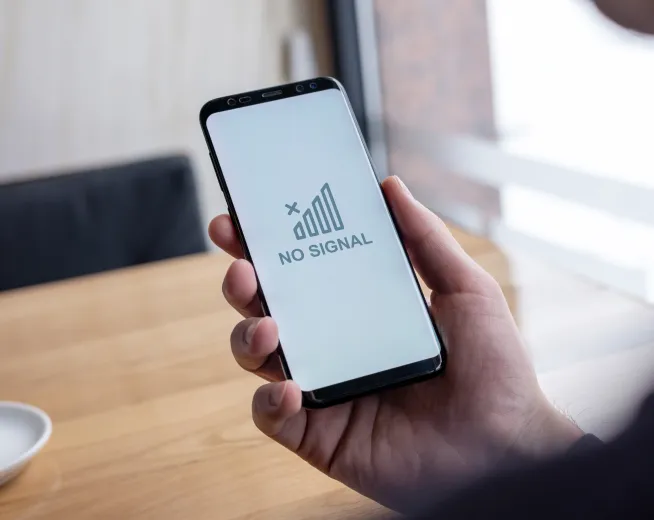
We’ve all been in that situation where we pick up the phone to call someone, but for some odd reason, the call won’t connect.
And you check the phone and see the last signal bar hanging on for dear life, or worse, the dreaded “Emergency Calls Only” message.
So begins your journey, holding up your phone and walking around, hoping against hope that you’ll get sufficient coverage to make the call.
Now you may think that this is because of poor network coverage.
And you’re not wrong, but the issue can also be because of something else.
So, what is it?
The blog aims to cover that. It discusses in detail the common causes of coverage issues, the steps you can take and more. Head right in!
Choose the Best SIM Only Plans with Great Value
Promo Price for 6 Months
Ireland Plus
€ 9.00 / 28 days
30GB Data
- Unlimited National calls & text
- 23GB EU, Ukraine & Moldova roaming data
- e SIM available
Promo Price for 12 Months
Go Unlimited
€ 11.00 / 28 days
Unlimited Data
- Unlimited National calls & text
- 30 GB EU, Ukraine & Moldova roaming data
- 100 Mins of Free calls to 31 Countries
- 100 GB 5G Data Nationwide
- eSIM available
Common Causes of Mobile Coverage Issues
There are many reasons why you may come across the zero signal bar issue.
Some can be fixed by changing the settings or simply by restarting the device.
While the solutions for some are, sadly, not in your hands.
Here are 5 common causes of mobile coverage issues that you may face.
Network Configuration Issues
This is one of the more common reasons why your smartphone is running into coverage issues.
As much as technology has developed, there are still some steps that you, as a user, have to follow to get things up and running.
Network configuration is one of them. If not configured correctly, your smartphone will run into coverage issues, regardless of signal strength.
Building Materials
Everyone knows that your location in a building influences signal strength. Like, if you’re inside a lift or in the basement, you should be more surprised if you actually see any signal bars.
In a similar vein, the materials used in the construction of a building also interfere with a mobile signal. Materials like metal, concrete, wood, and fibre glass will also contribute to low signal bars.
Distance from the Tower
This is actually a no-brainer. If you live closer to the signal tower, then you can experience a strong network signal, provided your smartphone is configured correctly.
However, if you live farther away, then you will most definitely run into network issues. This is also the reason why you don’t see any signal bars in remote locations. Even a lack of obstructions will not help if there is a considerable distance between you and the tower.
Weather
The weather has a noticeable impact on your network signal. Any form of precipitation, be it rain, snow, sleet or hail, will have a negative impact on network strength.
Rain is particularly harmful in this scenario, as water often absorbs and scatters radio waves that originate at the tower, leading to poor network coverage.
Additionally, severe weather elements like storms and hurricanes can damage network towers and other infrastructure, leading to service disruption.
Damaged SIM Card
Although a non-issue with eSIMs, damaged SIM cards are often a cause of network issues. If there is a considerable amount of dust on your SIM card, then it may not work as intended.
Also, scratches and wear on the SIM’s metal contacts can also impact its functionality. If your network issue is due to a damaged SIM card, then the only solution is to replace it.
Facing Network Issues with Lyca Mobile? Here’s What You Should Do
Understanding the causes of network issues is one half of the battle.
The next step is to find a solution for the signal coverage issues you’re facing.
There are three ways to troubleshoot your signal issues with Lyca Mobile.
Enable/Disable Airplane Mode
This should be your first course of action.
Enabling Airplane mode disables everything related to your smartphone’s radio frequency (RF) signal transmission technology. This includes Bluetooth, cellular and Wi-Fi signals.
This is also considered a type of reset, as your smartphone is blocked from sending/receiving signals. Most connection issues will be sorted out once you’ve enabled Airplane mode for roughly 10 seconds and disabled it.
Proceed to the next troubleshooting tip if this doesn’t work.
Restart Your Device
You’ll see this advice for a variety of issues. This is because restarting/rebooting your smartphone does the following:
- Refreshes all network connections (Cellular, Wi-Fi and Bluetooth)
- Kills background apps
- Terminates non-responsive processes
- Clears temporary files and cached data
So, if you’re facing network issues with your Lyca Mobile SIM, then try restarting your device.
Manual Network Configuration
If enabling/disabling airplane mode and a device restart didn’t fix your connectivity issues, then the chances are that your network settings aren’t configured correctly.
Here’s how you can configure the network manually for your Lyca Mobile SIM card.
Step 1: Open the Settings app.
Step 2: Look for an app name “Lyca Services”, or search for “SIM Tool Kit”.
Step 3: Select Lyca Mobile>Mode > Manual > National.
Step 4: Restart your device. Your smartphone should connect to the Lyca Mobile network correctly now.
When to Contact Your Customer Support
The steps in the previous section ought to fix your Lyca Mobile connectivity issues.
If they didn’t, then the next step is to check the SIM card for physical damage.
Look for any signs of damage, especially on the metal contacts. If they appear damaged, try the SIM card in another smartphone.
If the SIM card doesn’t work in either device, then you probably have a damaged SIM card.
Follow the steps below to replace your damaged SIM card.
Step 1: Log in to your My Lyca account.
Step 2: Click on Manage Account on the dashboard.
Step 3: Click on SIM Swap.
Step 4: Click on My card is damaged. You also get the option to change your Lyca Mobile SIM card into an eSIM.
Step 5: Click on I have a SIM card and then Swap to new SIM card.
Step 6: Click on I agree to the above terms.
Step 7: Enter the ICCID and PUK Code of your current SIM card and complete the rest of the process to have a new SIM card with the same plan delivered to you.
If there is no visible damage on your SIM card and other SIM cards work without any issues, then it’s time to call customer support.
You can reach customer support by dialling
- 1923 from a Lyca Mobile number
- 01-437-2322 from other networks
- +3531 437 2322 from outside of Ireland
Our customer support executives will be glad to help you find a speedy resolution.
Conclusion
Having a phone with a functional plan but not being able to make a call is the worst.
Numerous factors come into play here. It helps to run a simple test to identify the cause of the problem and find a solution.
When you run into network issues, consider enabling/disabling Airplane mode and/or restarting your device. This solves the issue most of the time.
You could also try manually configuring your SIM settings.
Additionally, you should also check the SIM card for damage or signs of wear. A new SIM card (or an eSIM) might just be the thing you need.
Network issues can also be caused by inclement weather. So if the weather has been rough for a while, that might be the reason you’re seeing the Emergency Calls Only message.
Poor signal and other network problems are annoying. But with the right measures, you can rectify them and enjoy Lyca Mobile’s reliable coverage across Ireland.
FAQs
Why does my phone suddenly lose signal?
There are many reasons why your phone suddenly loses signal. You could have moved to a location with traditionally poor reception, like basements and lifts, or farther away from the tower. Other reasons include a damaged SIM card, network congestion, and inclement weather.
What does “Emergency Calls Only” mean?
Emergency Calls Only means that your smartphone has lost connectivity to your cellular network, making you unable to make/receive calls, send/receive messages, and use data. However, you can still call the Irish emergency numbers 112 or 999 without any issues.
Can weather affect mobile signal strength?
Yes, the weather can affect mobile signal strength. Harsh weather, especially rain, interferes with the transmission of radio signals, which can lead to poor mobile signal strength.